TrioLMS
Sign in Start a free trial

Features

How TrioLMS works, in full

Making a course, giving it to the right people, and seeing who has finished, with every feature and question in one place.

Create

Your training site, and your courses

Set up a site for each client, branch or team. Then upload the courses you already have, or build new ones in the composer.

How it fits together From idea to approved course
The composerAn upload
Checked Draft Approved Course store

A site of its own

Each client, branch or team gets a site at its own address, with its logo and colours on every page, email and certificate.

Build without an authoring tool

Make a course in your browser from slides, video, pictures, PDFs and quizzes. Anyone on your team can, starting from a template.

Bring what you already have

Upload SCORM 1.2 or 2004, cmi5 or xAPI from Storyline, Rise, Captivate or any other tool. Each upload is checked before anyone sees it.

Nothing goes live by accident

Every course waits as a draft until a site admin has played it through and approved it.

Every version kept

Change a course and build it again. Each version is kept, so you can see what changed, and go back.

Share the good work

Share projects and templates with other authors, and copy an approved course to another of your sites.

Real screens

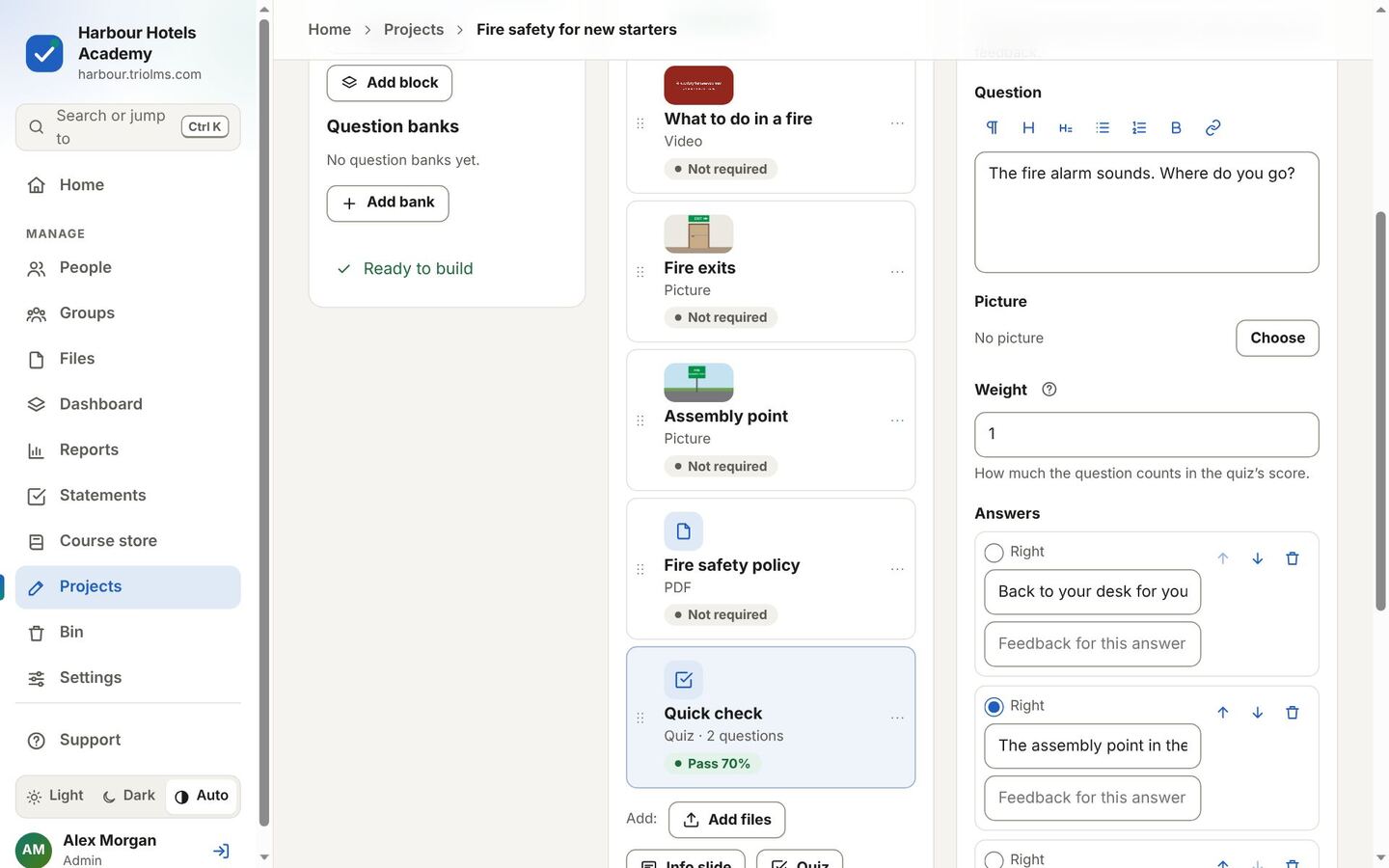
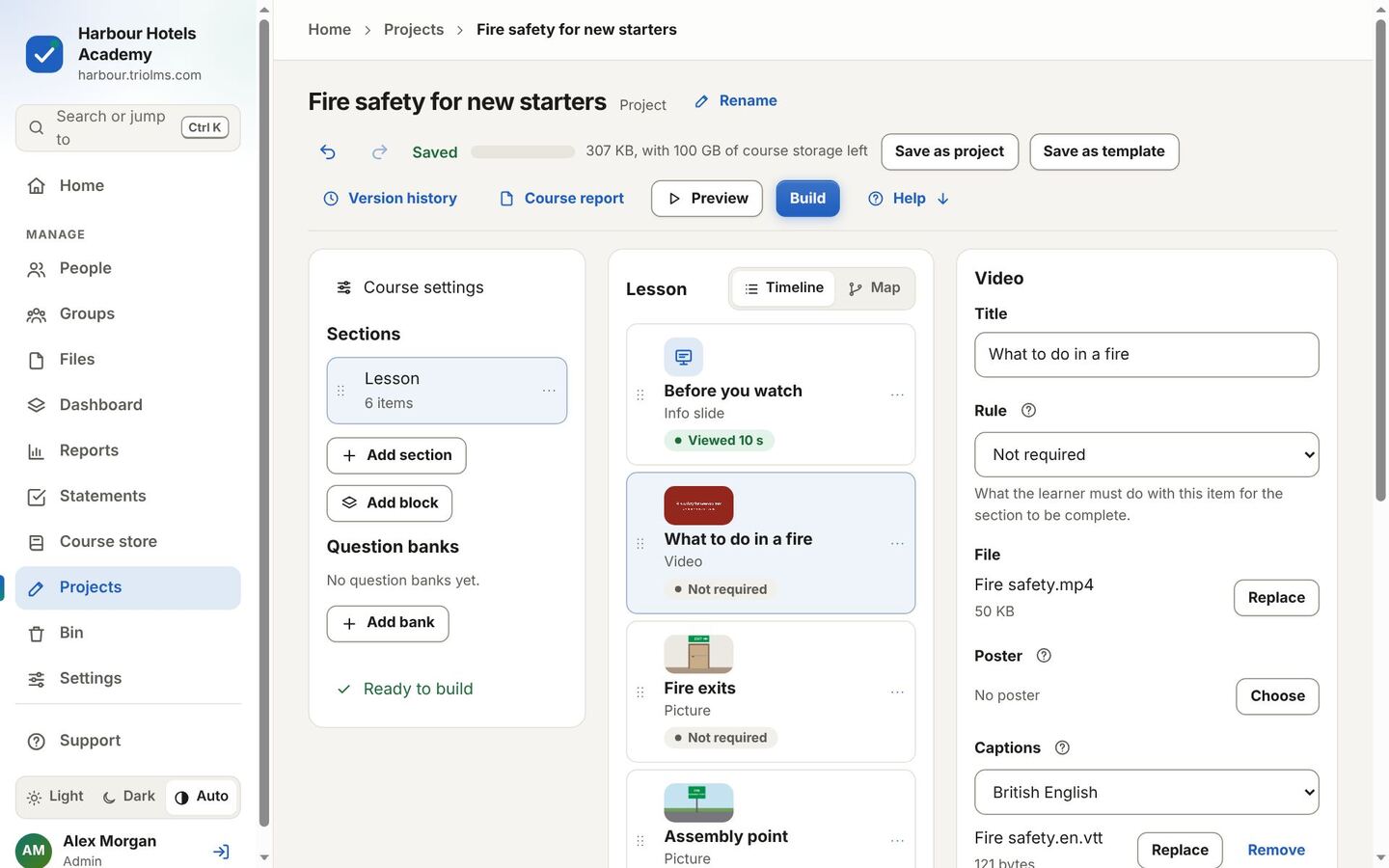
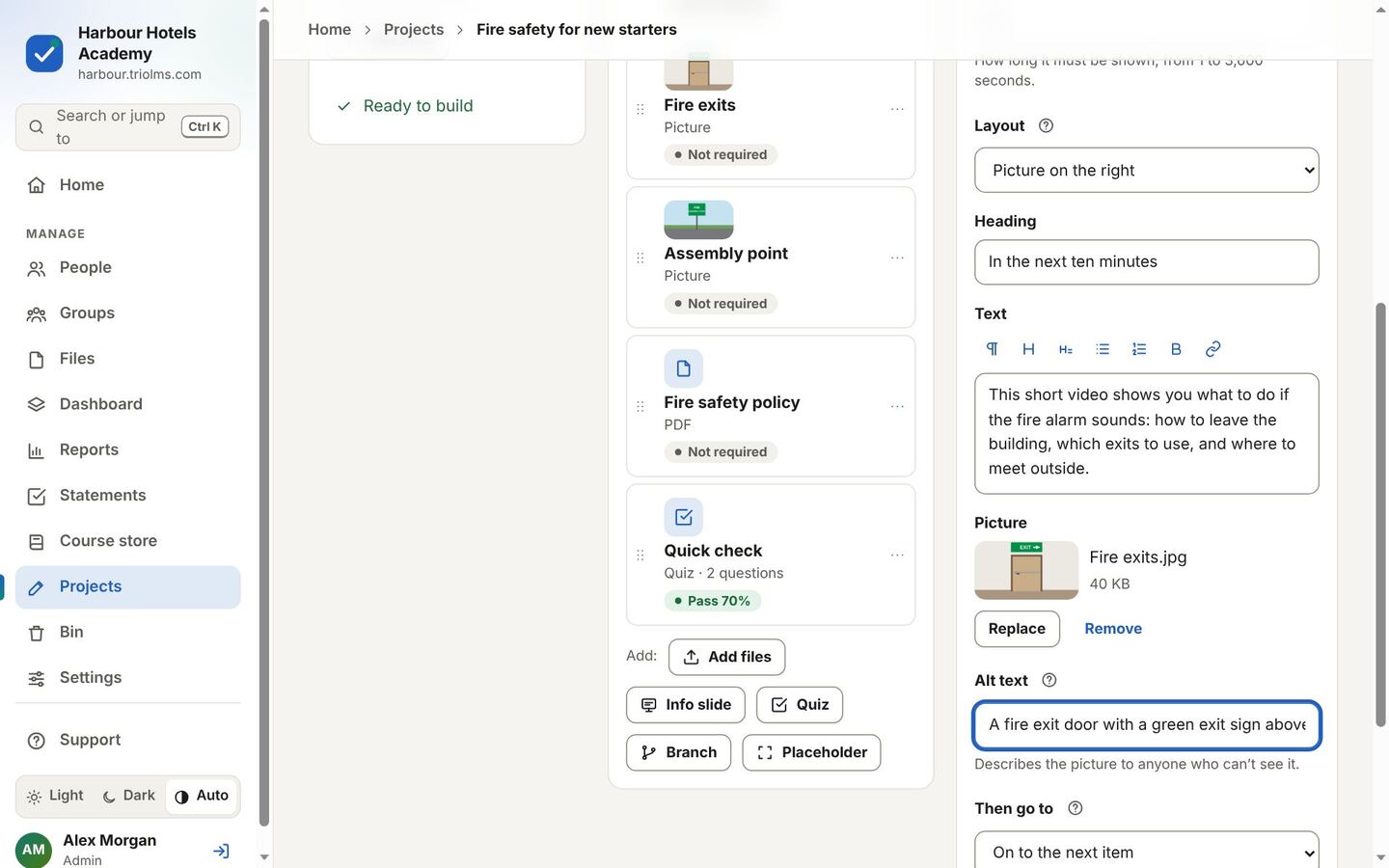
  1. The composer

    A course made from a template, with a video, pictures and a PDF lined up in order.
    The composer
  2. Waiting for approval

    The draft as the site admin sees it: approve it, or write a note and send it back.
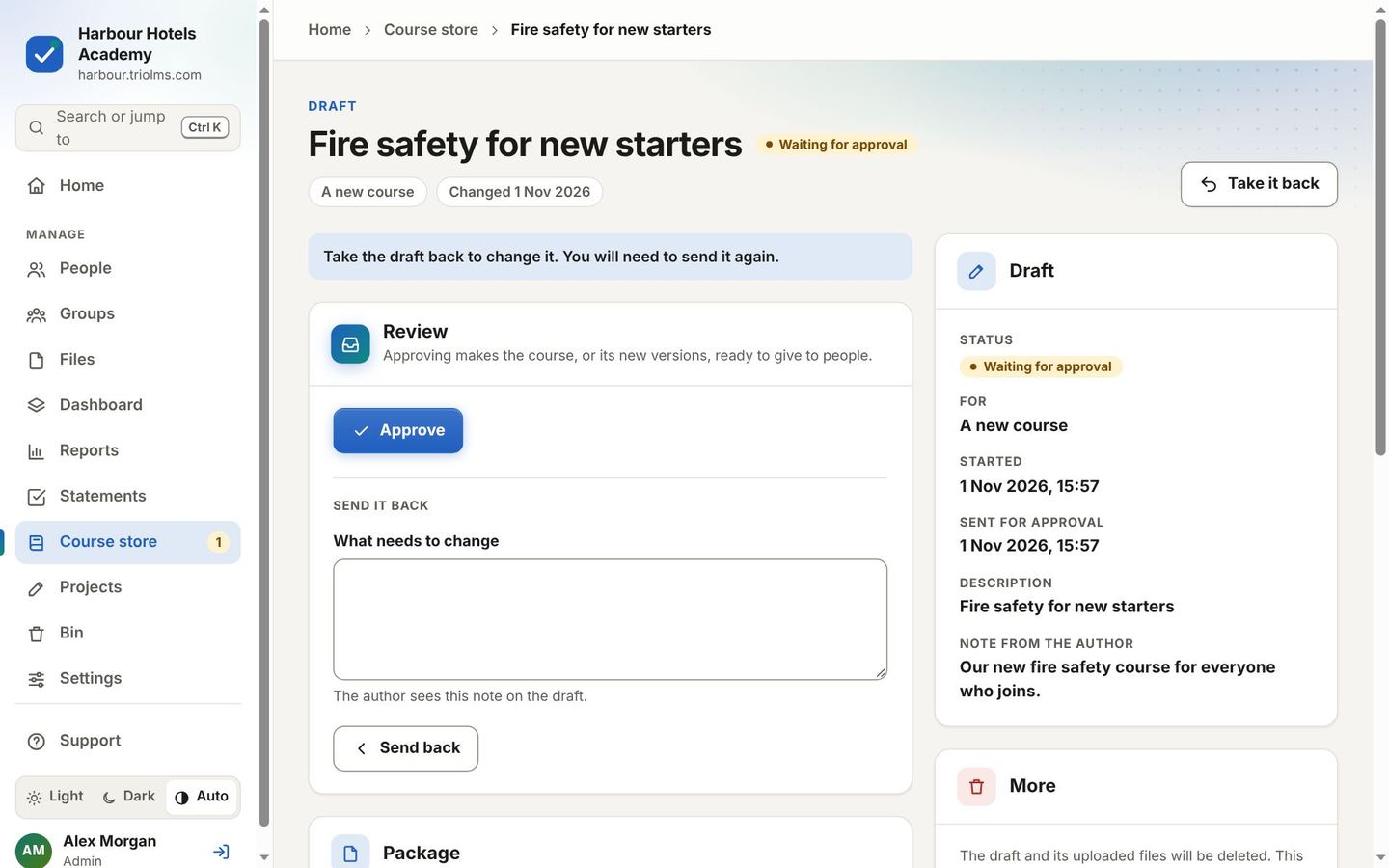
    Waiting for approval
  3. The course store

    The new course, approved and ready to give to groups.
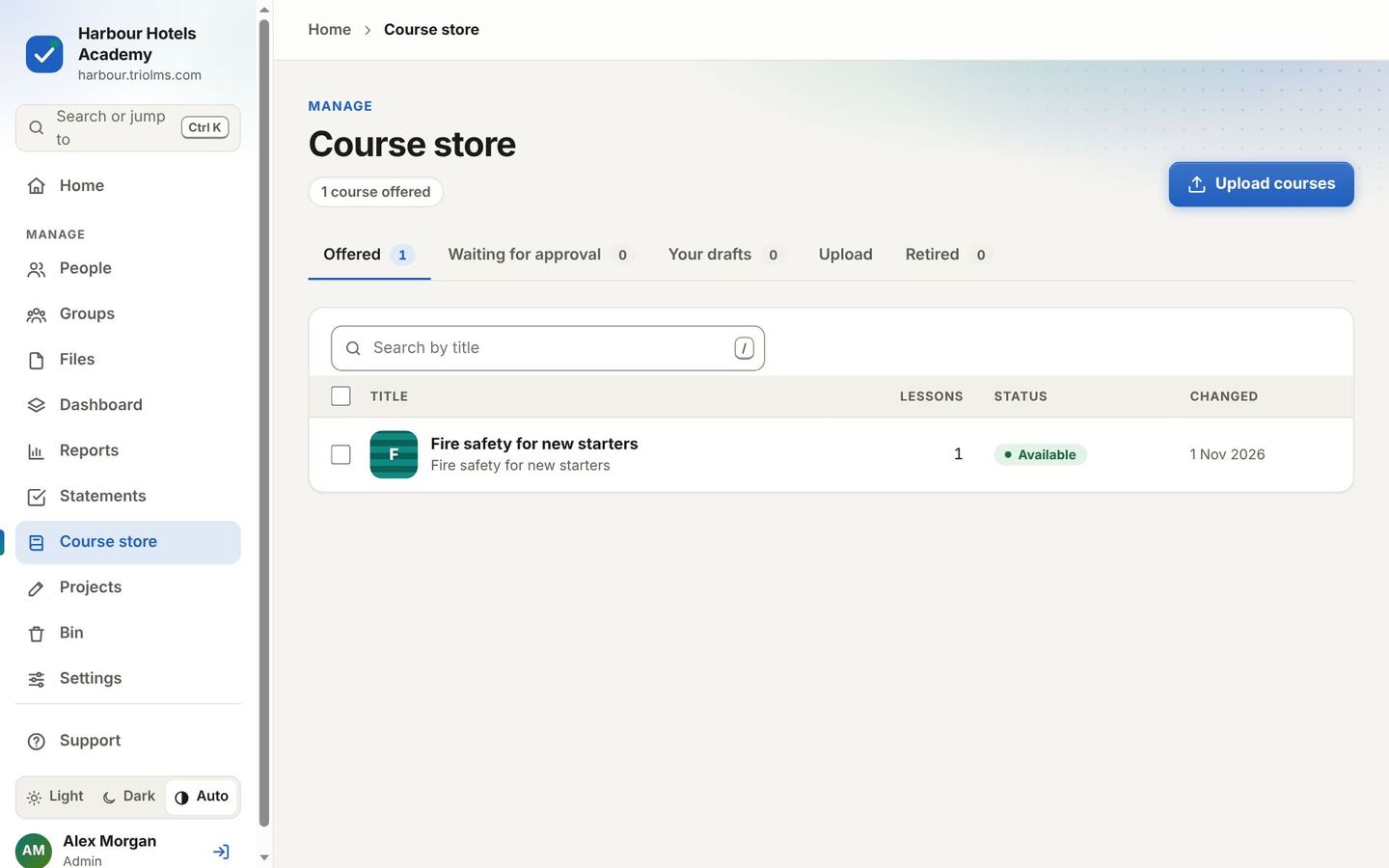
    The course store

No course yet?

Your clients can make their own short courses

Anyone you trust can be a course author: a team leader, a trainer, or the person who wrote the policy. They build courses in the browser from what they already have, and an admin approves each one before anyone sees it.
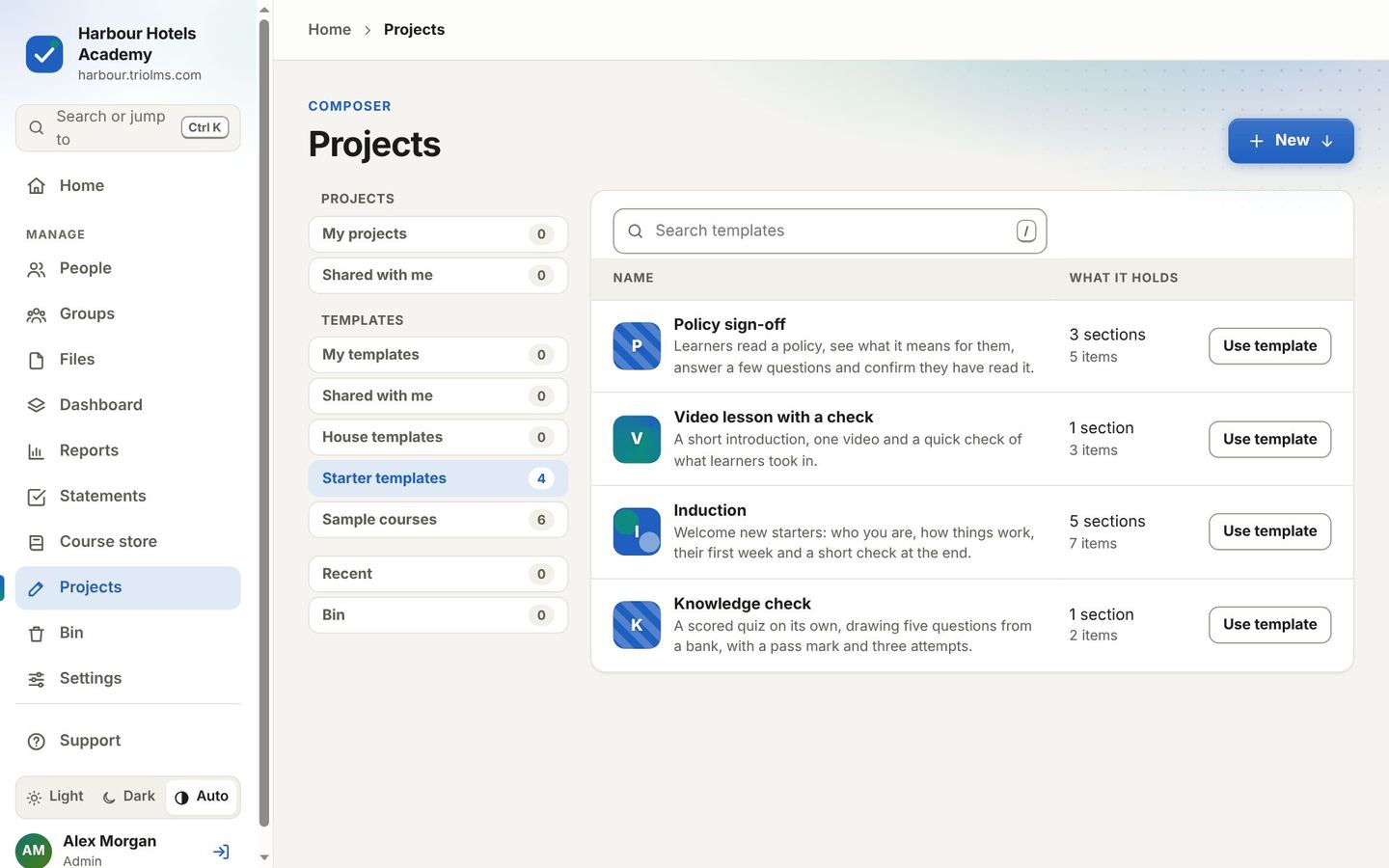
How a course gets made

  1. Start from a template
  2. Drop your content in
  3. Write a slide
  4. Add a quiz
  5. Try it out
  6. Press Build
  7. Approved, and ready to give to groups.

What you gain

  • No authoring tool licences to buy.
  • No waiting for an e-learning team or an agency.
  • Training that keeps up: when the work changes, the person who knows it changes the course.

How you stay in control

  • You choose who can make courses.
  • A site admin approves every course before anyone sees it.
  • House templates keep everyone’s courses looking the same.
  • Course authors never see anyone’s results.

Why a beginner can’t go far wrong

  • A short tour the first time you open it, and help beside every setting.
  • Starter templates that are ready to fill in.
  • It saves as you go, with Undo, and keeps every version so you can go back.
  • Before Build, plain checks say what’s missing, and what would make the course hard for someone to use.
  • Nothing reaches a learner until a site admin has looked at it.
  • No authoring tool to buy and nothing to install. It all runs in your browser.

And when you want more Branching and learner pathways, question banks, questions inside a video, the course map, shared templates, and uploading from Storyline or Rise.

Assign

The right people, the right courses

Bring your people in, put them in groups with their own managers, and give each group its courses.

How it fits together From seats to people
Seat pool Site
Front deskKitchenHousekeeping
Fire safetyDue 30 days after joining

Seats you can reuse

Every account uses one seat. When someone leaves, remove them and their seat is free for the next person straight away.

Bring people in your way

Upload a spreadsheet and see a preview before anything changes, connect your work sign-in and directory with the SSO add-on, or use the API.

No passwords to manage

People confirm their email once, then sign in with a code, or their work account through the optional SSO add-on. Site admins, managers, authors and people from outside add a second step.

Managers for every group

Give each team, site or customer its own managers. They add people, give courses and follow progress, and see only their own groups.

Contractors with an end date

Add people from outside with a start and end date. Their access stops on the last day, checked every time they visit.

Due dates that follow each starter

Give a course to many groups at once, due on a date or a number of days after each person joins, with reminders and renewals.

Real screens

  1. People

    Every account, with its roles and whether it’s confirmed, and the seats in use at the top.
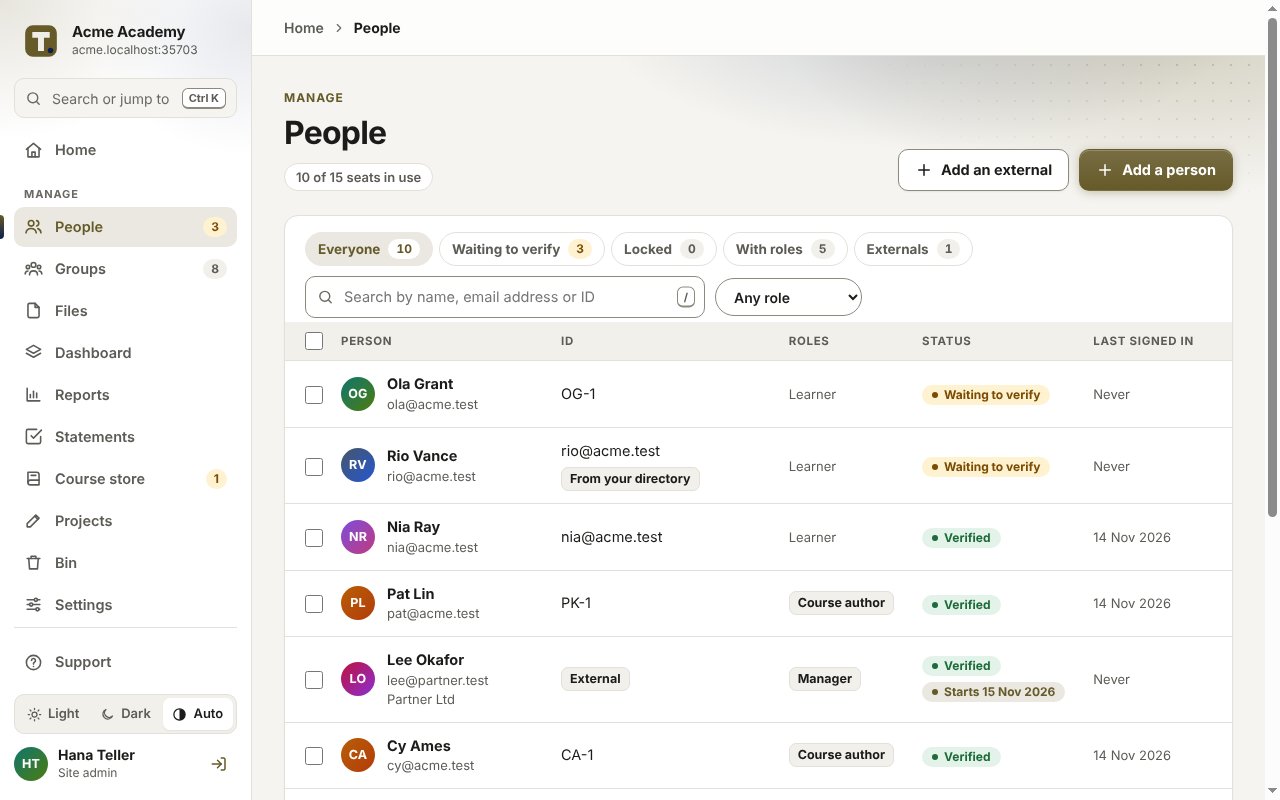
    People
  2. A spreadsheet upload

    What happened to every row, after a preview you checked before anything changed.
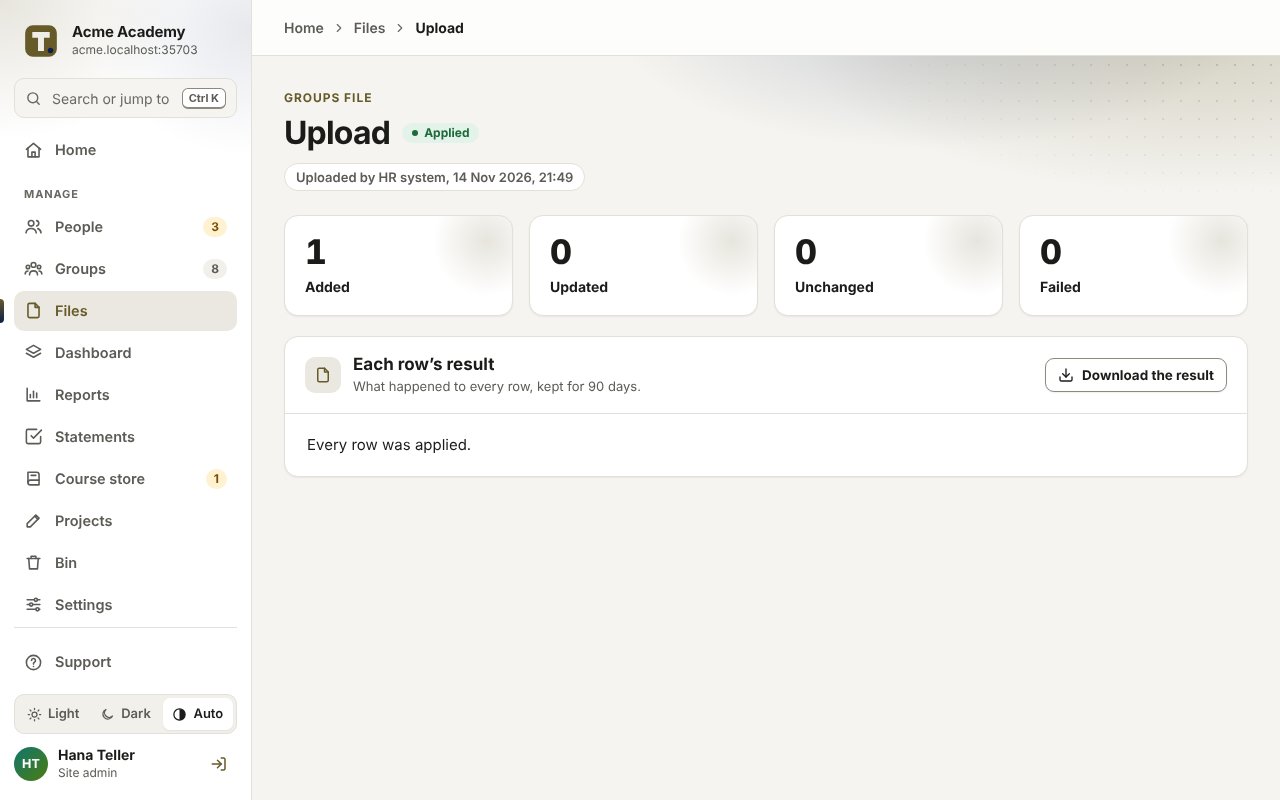
    A spreadsheet upload
  3. A group

    Its people, with tabs for its courses, its managers and its settings.
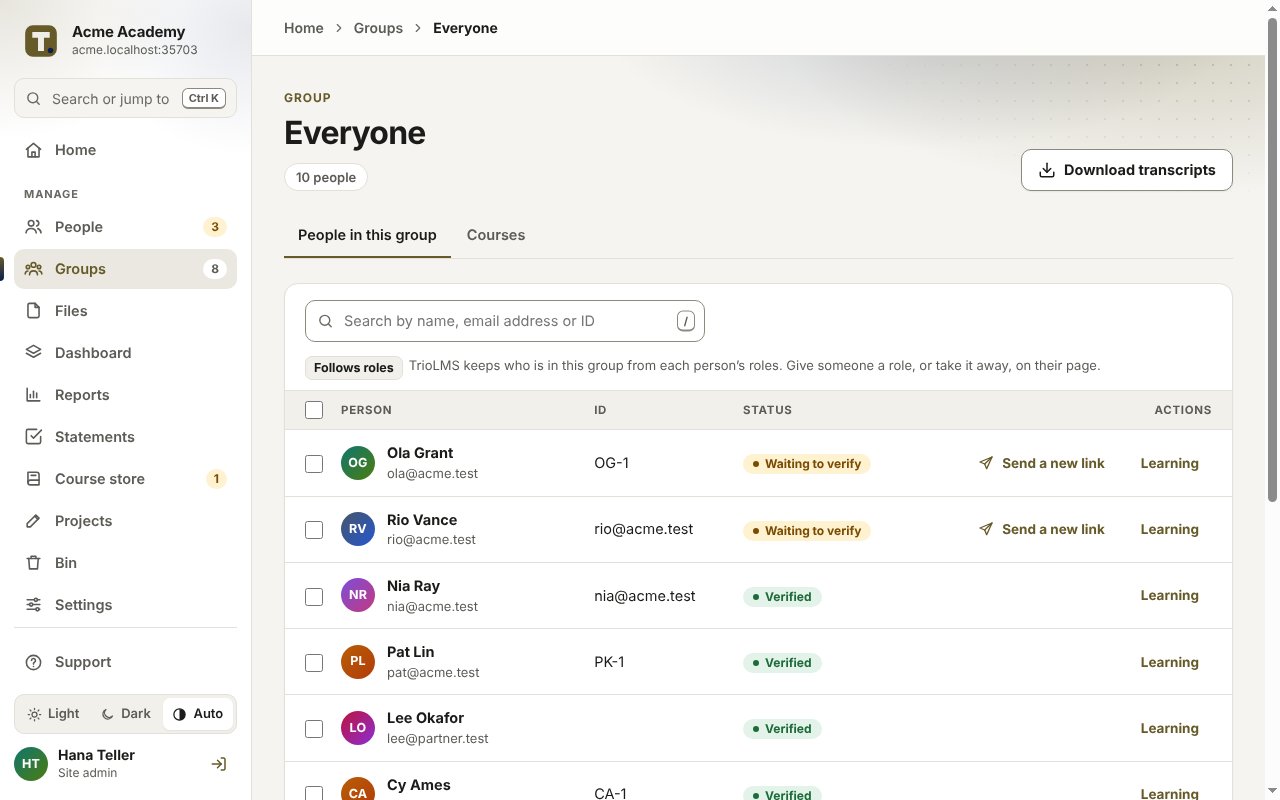
    A group

Deliver

What your client’s people see

Learners sign in at their site’s address and take their courses on any device. The client sees who has finished, and every pass gives a certificate that proves it.

How it fits together The loop
Learner Course Results Reports and certificates

Nothing to install

Learners sign in at your address with an emailed code, or their work account through the optional SSO add-on, on any phone, tablet or computer.

Carry on anywhere

Courses save as they go. Start on a phone at lunch, and finish on a laptop later.

Ready for their language

Every page and email is ready to translate. Today they’re in English, and as more languages are offered, each person picks their own.

Reminders that do the chasing

Emails before a course is due, on the day, and every week while it’s overdue. Managers get a weekly summary.

Dashboards and reports

See who has finished at a glance. Download reports as a spreadsheet or PDF, or have them emailed every week or month.

Records for the whole audit period

Every attempt, score and certificate is kept for 3 years, unless you choose anything from 1 to 10.

Real screens

  1. Your learning

    What a learner sees first: each course with its due date and progress, ready to carry on.
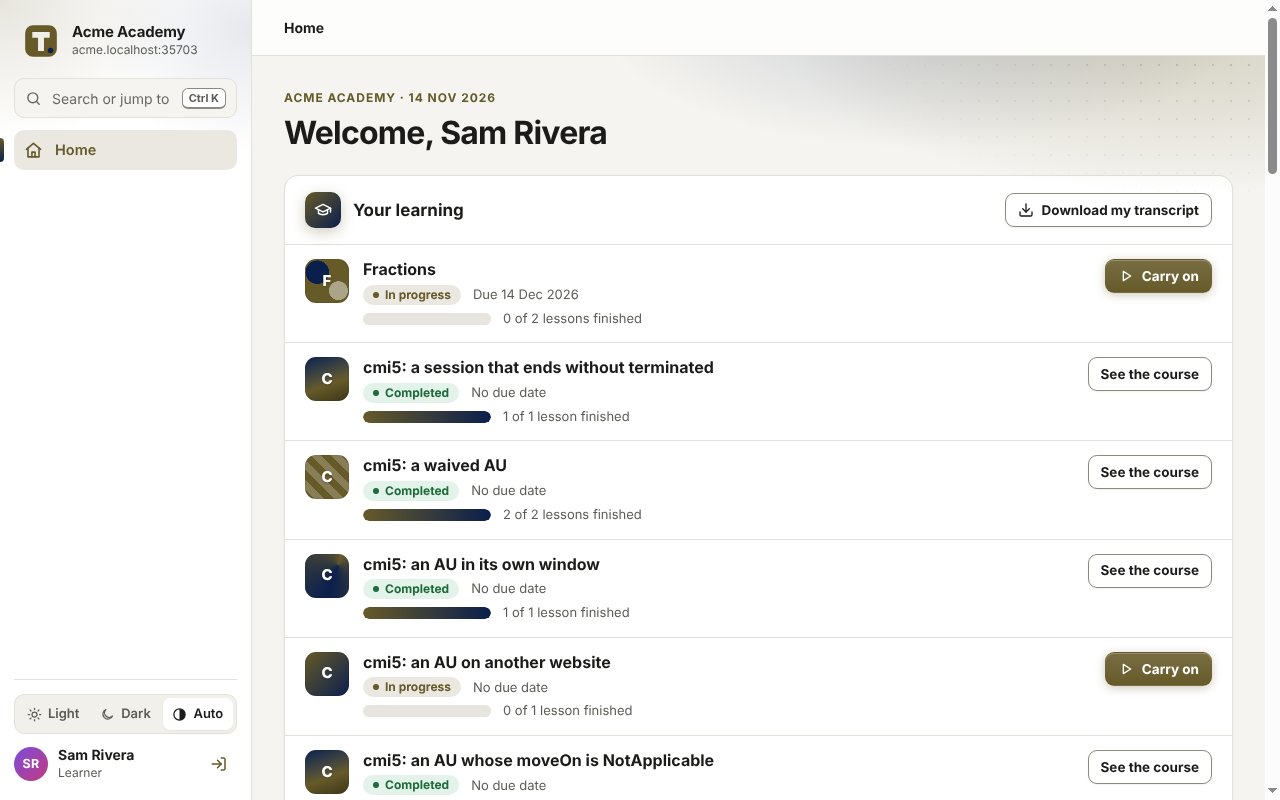
    Your learning
  2. A course

    Its lessons, each ready to start or carry on, on any device.
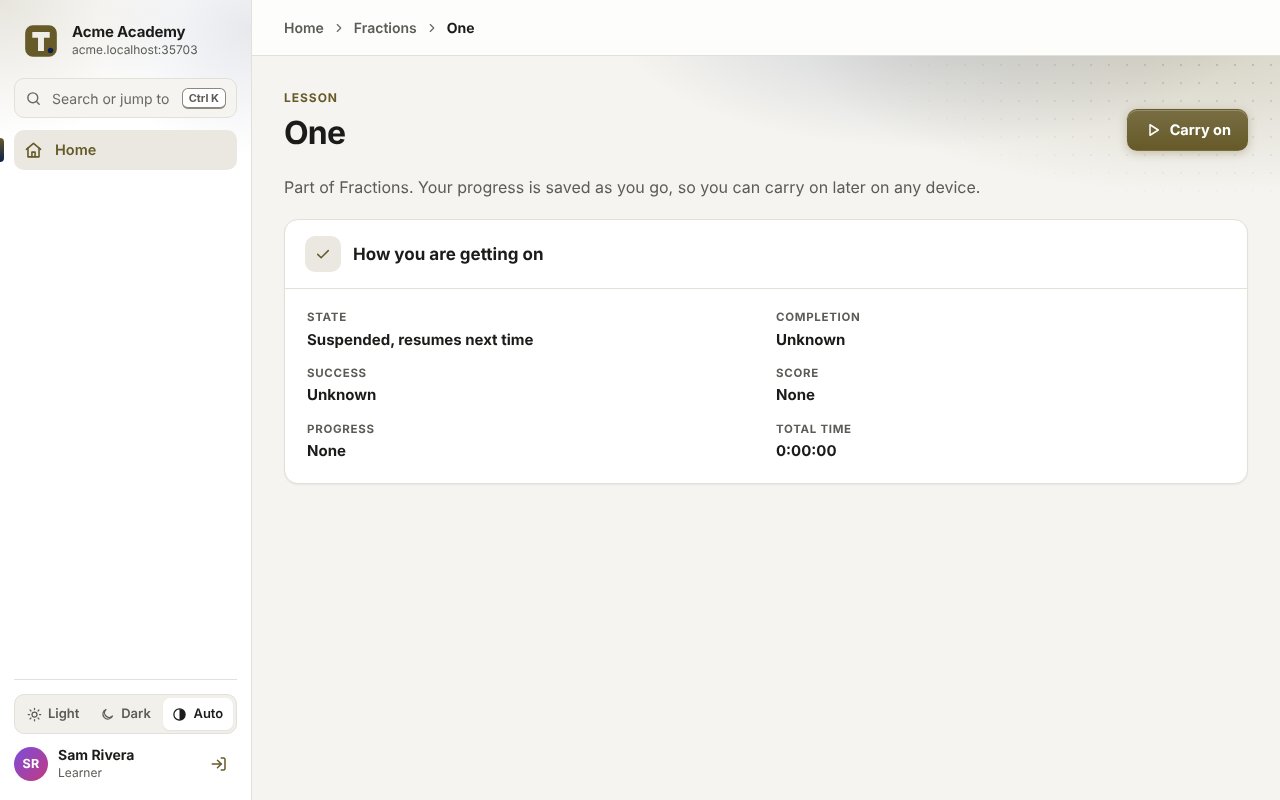
    A course
  3. The dashboard

    Who’s done, who’s in progress and who’s overdue, by group and by course.
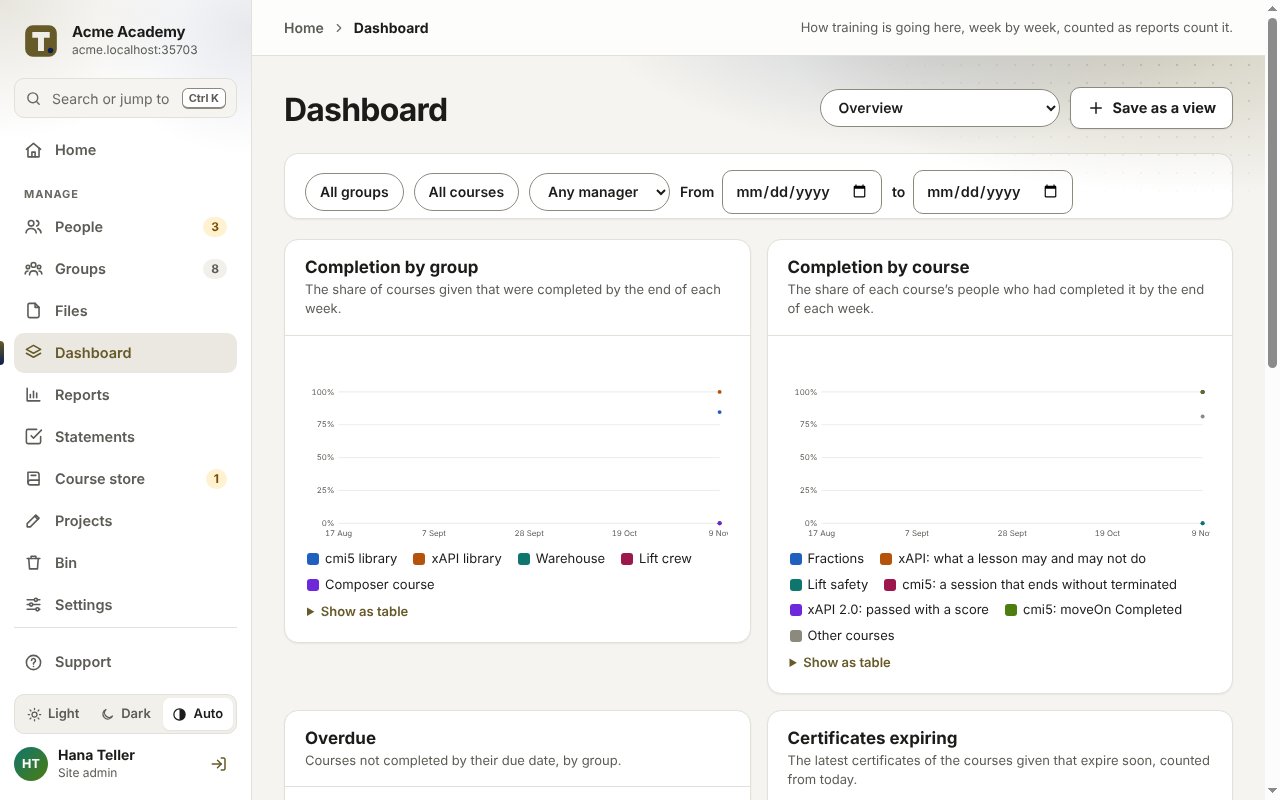
    The dashboard

Proof of training

Certificates and transcripts anyone can check

When an auditor asks for proof, a printout is easy to question. TrioLMS gives every certificate and transcript a way to be checked.

A verification code
Every certificate and transcript carries a code and a QR link to the verification page.
Spots a changed copy
We keep a fingerprint of each document, so the verification page can tell whether a copy has been changed.
Complete records
Each attempt keeps its dates, score, course version and how the person signed in.

Check a document

Runs on TrioLMS

Open about the platform

Your client’s site runs on TrioLMS. That’s the point: you don’t run servers, and they get a platform that’s looked after.

  • Every site has its own address, such as clienta.triolms.com, or the client’s own, such as learn.clienta.com, with the custom domain add-on.
  • The client’s logo and colours are on every page, email and certificate, but the TrioLMS name still shows in places, so it isn’t white-label.
  • Certificates are checked at triolms.com/verify, so anyone can see they’re real.
  • Everyone gets a short TrioLMS training course for their role.
  • The client’s site admins can export its records at any time, and an archived site’s records are kept for its audit period.
  • Your staff, and anyone from outside who helps, use a seat in each site they work in. Nobody gets a free seat.

Roles

Every role, its own view

Each person sees what their job needs, and nothing more.

Your TrioLMS administrator

What they do
Builds the account, makes the sites, shares out the seats, and pays.
Never sees
Learners’ records, or what’s inside a course project.
For example
The agency or freelancer who holds the account, or the operations lead at a business with several sites.

Site admin

What they do
Runs one training site: approves courses, sets up people and groups, and reads every report.
Never sees
Any other site.
For example
The L&D manager who runs training for one company, one client or one brand.

Course author

What they do
Builds and uploads courses, and shares projects with other authors. Anyone you trust can be one.
Never sees
Any learner’s data.
For example
A team leader, a trainer, a subject expert, or the person who wrote the policy.

Manager

What they do
Looks after their groups: adds people, gives courses, and follows progress.
Never sees
Groups they don’t manage.
For example
A store or site manager, a shift lead, or the head of a department.

Learner

What they do
Takes their courses on any device, and keeps their certificates.
Never sees
Anyone else’s progress.
For example
Everyone who takes the training: new starters, office staff, crews on the shop floor.

Contractor

What they do
Works with you from outside: takes courses, and builds courses or manages groups when given that role, between their start and end dates.
Never sees
Anything after their end date.
For example
A freelancer who builds your courses, or a partner who manages one of your groups.

Everyone gets a short TrioLMS training course for their role, given automatically.

For the technical people

The standards, done properly

Everything an agency’s developer or a client’s IT team will ask about. There’s more in the technical deployment guide.

  • SCORM 1.2 and SCORM 2004 (2nd, 3rd and 4th editions), from Storyline, Rise, Captivate or any other tool.
  • cmi5, checked against the official cmi5 test suite on every change.
  • xAPI 2.0 and 1.0.3, with a learning record store built into every site and checked against ADL’s conformance test suite.
  • Records kept in the UK and EU, or in the US, with names and email addresses encrypted with each site’s own key.
  • No passwords: a code by email, or a work account through the single sign-on add-on, and a second step for staff.
  • Spreadsheet files with a preview before anything changes, and an API with signed webhooks.

Features

Everything TrioLMS does

Every feature, in plain words. It lists only what’s built and working today.

The composerBuild courses in your browser from templates, your own files and quizzes, with no authoring tool.
Starter templates
Induction, Policy sign-off, Video lesson and Knowledge check, ready to fill in, with a note on each slide saying what goes there.
Video, sound, pictures and PDFs
Drop files in and they line up in order. Videos take captions and a poster picture.
Slides you write
Type or paste your words, add a picture and choose a layout: text, a picture on either side, a full picture, or two columns.
Quizzes
Seven kinds of question, from single choice to hotspots on a picture, with a pass mark, attempts, a time limit and feedback for each answer.
Surveys
Ask for opinions as well as right answers, without a score.
Question banks
Keep questions in a bank, and let each quiz draw a few at random, so no two learners sit quite the same test.
Questions in a video
Pause a video at a moment you choose, and ask a question there.
Branching and pathways
Send learners on by their score, or let them choose their own path.
Pre-tests
A short test first, so people skip the parts they already know.
The course map
See the whole course and its branches as a map beside the timeline.
Versions
Look back through earlier versions of a project, see what changed, and bring one back.
Sharing
Share a project with other authors. One edits at a time, and everyone sees who else is in it.
House templates
Site admins publish templates for every author, so everyone’s courses look the same.
Export and import
Take a project out as a file, and bring it back in, here or in another site.
The accessibility check
Before Build, TrioLMS checks the course against WCAG 2.2 AA as far as its content shows, such as missing captions or alt text.
Preview
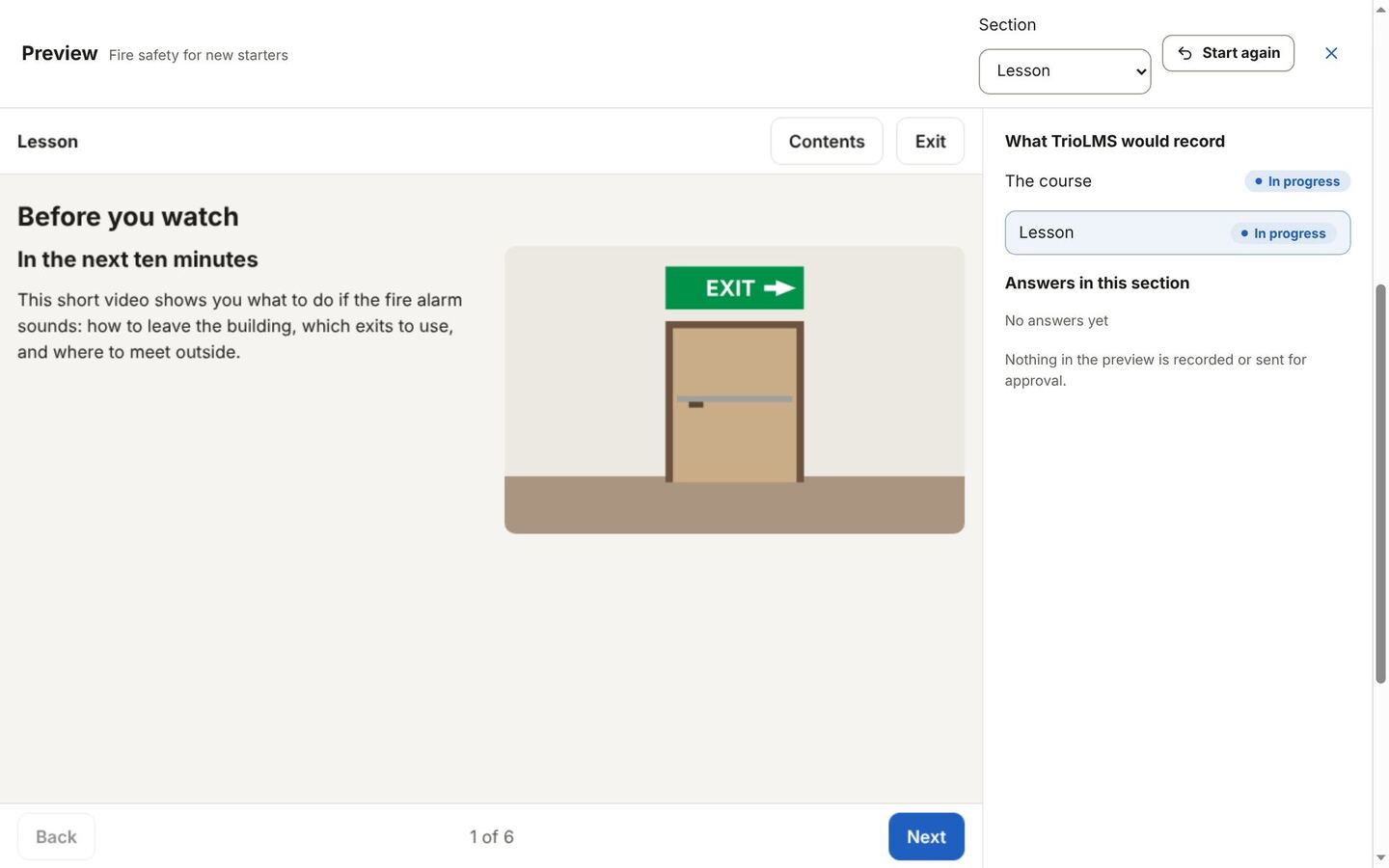
Play the course as a learner would, before anyone else sees it.
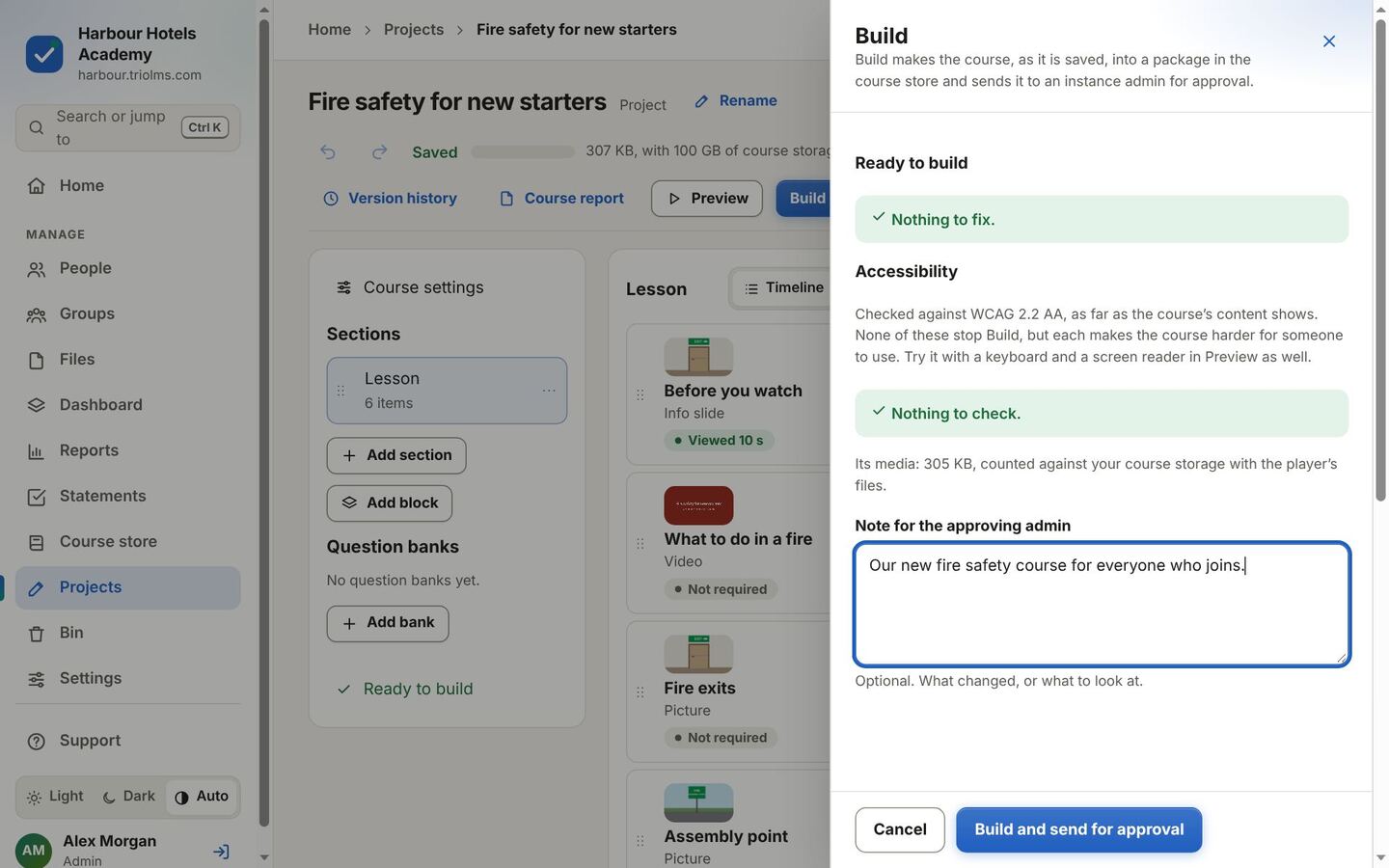
Build
Checks that nothing is missing, makes a cmi5 course that also plays in any other cmi5 LMS, and sends it for approval.
The course report
A summary of how the course plays, on screen or as a PDF, kept with each version.
Help and the tour
A guided tour, help beside every setting, and a sample course that shows how it all works.
Uploading coursesBring in SCORM, cmi5 and xAPI courses from any authoring tool, checked and approved before anyone sees them.
SCORM, cmi5 and xAPI
SCORM 1.2, SCORM 2004 (2nd, 3rd and 4th editions), cmi5, and xAPI packages with tincan.xml, from Storyline, Rise, Captivate or any other tool.
Checked on upload
Each package is read and checked before it’s kept, with a plain message if something’s wrong.
Drafts and approval
Every new course or version waits as a draft until a site admin approves it, or sends it back with a note.
New versions
Upload an updated package as a new version of the same course.
Courses in several lessons
A course can hold several lessons, taken in order.
A course’s last day
Choose the day a course stops opening. Learners who hadn’t finished see it is no longer available, and every record is kept.
Copying between sites
Copy an approved course to another of your sites, in the same region or the other one.
Your course library
Keep courses in your account, outside any site, and copy one into any site, where it arrives as a draft.
Archive or withdraw
Archive a course so it takes no new groups while people finish it, or withdraw it so it stops opening at once. Every record is kept, and either can be undone.
Sites and brandingGive each training site its own address, brand, region, languages and share of your seats.
Its own address
Every site works at its own triolms.com address from the start.
Your own domain
Put a site on your own address, such as learn.yourcompany.com, as an add-on.
Your brand
Your logo, colours, font and corners on every page.
Branded emails and certificates
Your logo and colour on every email, certificate and transcript.
Light and dark
Light, dark, or following each person’s device.
Your region
The UK and EU, or the US. Every record and file in the site stays there.
A share of your seats
Each site has its own share of your seat pool, which you can change whenever you like.
Languages
Choose the languages each site offers and its default, and each person picks their own. Today TrioLMS is in English, with every page and email ready to translate.
More than one TrioLMS administrator
Add other TrioLMS administrators to your account, each with their own second step.
Pause, archive or delete
Close a site at your next billing date. Paused, it keeps everything and its seats, and is still charged; restart it whenever you like. Archived or deleted, its seats stay in your pool or come off your bill, as you choose.
People and sign-inSign-in with no passwords, confirmed accounts, a second step for staff, and single sign-on as an add-on.
No passwords
People sign in with a one-time code sent to their email, or with their work account through the optional SSO add-on.
Confirmed accounts
Every account confirms its email address before it can sign in. The email link only opens a page; nothing changes until they press Confirm.
A second step
Admins, managers, course authors, contractors and TrioLMS administrators also use an authenticator app or a passkey.
Single sign-on
An add-on: sign in with Microsoft Entra ID, Google Workspace, Okta, or any SAML or OpenID Connect provider.
Sign-up at first sign-in
With single sign-on, someone new from your company can be added the first time they sign in, within a cap you set.
Directory sync
People and groups follow your directory, added, updated and removed as it changes.
Contractors
People from outside, with their organisation, notes and required start and end dates, activated by a site admin.
Each person’s details
Change a name or a language with Undo. A new email address is confirmed before it is used.
The bin
Removed people, groups and courses wait in the bin for 90 days, so nothing is lost by mistake.
Undo
Most changes can be undone for 10 seconds, and the emails they send wait until then.
Seats and groupsShare one pool of seats, organise people into groups with managers, and set it all up from a spreadsheet.
One seat pool
Buy your seats once, and share them between your sites.
Reusable seats
Every account uses one seat from your pool. When someone leaves, remove them and their seat is free for the next person straight away. Their training record stays.
Groups
As many groups as you need, and a person can be in several.
Managers
Give each group managers, who see only their own people.
Seat caps
Limit how many people a group’s managers can add.
Role groups
Built-in groups that follow each person’s role, so everyone gets their role’s TrioLMS training.
Spreadsheet set-up
People, Groups and Contractors spreadsheets that download as their own template, and show a preview before anything changes.
Your own HR export
Match your HR system’s columns once, and every later file with those headings just works.
Full sync
Upload your whole list, and anyone missing from it moves to the bin, with Undo.
Assigning and deadlinesGive courses to groups with due dates, reminders and renewals that look after themselves.
Many groups at once
Give a course to one group, or many at once.
Due dates
A fixed date, or a number of days after each person joins.
Reminders
Emails before a due date, on the day, and every week while it’s overdue, in your time zone. You choose the days.
Managers’ weekly summary
Each Monday, managers hear what is overdue or expiring in their groups.
Renewals
Before a certificate runs out, the course comes back to the learner by itself, due on the day it expires.
Waiving
Mark a cmi5 lesson as done for someone who has already shown they know it.
The learner’s dayWhat learners see: their courses on any device, carrying on where they stopped.
Your learning
Every course with its due date and progress, in one list.
Any device
Courses play in any modern browser, on a phone, tablet or computer.
Carry on anywhere
Progress saves as they go, and carries on from another device.
Their own language
Each person picks the language TrioLMS uses with them, from those their site offers. Today that is English.
Their certificates and transcript
Every certificate they have earned, and a transcript of everything they have done, ready to download.
Certificates and recordsCertificates anyone can check, transcripts, the audit log, and records kept for as long as you need.
Certificates
A certificate for each pass, as a PDF with its own number, expiry date and QR code.
Certificates anyone can check
Each pass gives a certificate with its own number, expiry date and QR code. Anyone can check it’s genuine at triolms.com/verify.
Transcripts
A record of everything a person has done, with a code that proves it, or a zip of one for everyone in a group.
The audit period
Records are kept for 3 years, unless you choose anything from 1 to 10, then removed.
A person’s data
Download everything held about someone, or erase them early when they ask.
The audit log
What site admins change is recorded, with who did it and when.
Reports and dashboardsDashboards and reports for site admins and managers, as spreadsheets or PDFs, emailed if you like.
The dashboard
Charts of who has finished, who’s in progress and who’s overdue, with filters and views you can save and share.
Ready-made reports
Completion, progress, audit, full activity, and certificates and renewals.
Spreadsheets your way
Choose the columns, headings, date format and separator, and save them as a layout.
PDFs
Every report but full activity also comes as a PDF.
Reports by email
Saved reports emailed weekly or monthly, as a link to download after signing in.
Only their own rows
Managers only ever see their own groups’ people in every report and chart.
xAPI, cmi5 and connectionsA built-in learning record store, cmi5 that passes the official tests, and an API with webhooks.
A built-in LRS
Every site has a learning record store for xAPI 2.0 and 1.0.3, checked against ADL’s conformance test suite.
The statement viewer
Admins see, and export, the statements their courses send.
Forwarding
Send statements on to another LRS as well. It’s off unless you turn it on.
cmi5 that works
TrioLMS’s cmi5 player is checked against the official cmi5 test suite.
The JSON API
Add people, manage groups and read results from your own systems, with keys and permissions you control.
Webhooks
Signed messages to your systems when someone is added, confirms their account, or completes a course.
Security and privacyData that stays in its region, encrypted personal details, and very little kept about anyone.
Data that stays in its region
All of a site’s records and files stay in the region you chose.
Encrypted personal details
Names and email addresses are encrypted with each site’s own key.
We keep very little
An email address, a name, a company ID and a language. Never a password, a birthday, a photo or a phone number.
Course files kept apart
Course files are served from a separate address that never sees a sign-in cookie, and only to signed-in learners.
Sites kept apart
Each site’s people and records are kept apart from every other’s, and that is tested on every change.
Bot checks
Sign-in pages ask for a bot check after repeated tries.
Help, support and billingTraining for every role, support from inside TrioLMS, and monthly billing for what you have.
TrioLMS training for every role
A short course for each role, ready in every site and given automatically.
The support form
TrioLMS administrators and site admins send us a request from inside TrioLMS, with files if they need to.
Guides
Plain guides to spreadsheets, single sign-on, the API and the LRS.
Monthly, with nothing yearly to commit to
Pay monthly for what you have, in pounds, euros or dollars, with tax shown on top. Add more at any time, or lower your bill from your next billing date.
Add-ons
More seats, sites and storage, your own domain, and single sign-on. See the add-ons and their prices
Your card and invoices
Change your card and download invoices through Stripe’s customer portal.

Questions

Real questions, answered

Asked the way people ask them in e-learning forums, and answered with what TrioLMS does about it.

The basics

What is a site?

A training site of its own, at its own address, such as acme.triolms.com or the client’s own domain. Each has its own people, groups, managers, courses and records, kept apart from your other sites, and its own share of your seats.

What is a reusable seat?

You buy a pool of seats. Every account in a site uses one seat from the moment it is added. Remove someone who has left and their seat is free straight away for the next person; their training record stays, read-only, for the audit period.

Is it white-label?

No. Each site carries your client’s logo and colours, and can have their own address, but the TrioLMS name still shows in places, such as the training course everyone gets and the certificate check at triolms.com/verify. We’d rather say so up front.

How do we get help?

Everyone gets a short TrioLMS training course for their role, given automatically. Your TrioLMS administrators and site admins can send us a request from the support form in the app, and anyone else can email hello@triolms.com.

Agencies and freelancers

My client doesn’t have an LMS. How do I get my course to their staff?

Give them a site of their own at their own address. Upload the course once and add their people. They sign in and take it, you see who has finished, and they never need an LMS.

Do I have to send everyone the zip file?

No. Learners sign in at the site’s address and the course plays there.

Can people download my course?

Clients never get the package, and the course files are only served to signed-in learners, from a separate address.

How do I stop a client using my course after the contract ends?

They never had the file. Give the course a last day, or end their access, and it stops opening for them. Their records are kept.

Can I make a SCORM course expire?

The file doesn’t need to. In TrioLMS a course can have a last day, and each certificate an expiry date.

Can I charge my clients for running their site?

Yes. TrioLMS bills you, and you charge your clients as you choose: a set-up fee, a monthly fee for each site, or course updates.

Does TrioLMS take payment from my customers?

No. You sell to them as you do today. TrioLMS bills you for your account, and you share out its seats.

How do I sell my Rise course to a company for its staff?

Give the company its own site with the number of seats it bought. Their site admin adds their staff, and you can see the take-up.

My course host is closing down, or ends with my subscription. Can I move?

Publish your courses again as SCORM, cmi5 or xAPI from your authoring tool, and upload them. Each is checked and previewed, then approved like any other course.

Your clients and their people

What do learners need?

A browser on a phone, tablet or computer. There’s no app and no password: they sign in with a code sent to their email, or with their work account through the optional SSO add-on.

What happens when a customer’s staff leave?

Remove them, and their seat is free for the next person. Their record is kept.

How do I see how many people are using it?

Each site shows its seats and every learner’s progress.

Can a manager see other teams’ data?

No. A manager sees only the groups they manage. Course authors never see learners’ data at all, and each site is kept apart from every other.

Can people outside the company take it, such as customers, volunteers or contractors?

Yes. Add them as external accounts with a start and end date, or give them a site of their own.

Can our staff sign in with Microsoft or Google?

Yes, with single sign-on, an add-on, which can also keep your people in step with your directory.

Do we need IT to set it up?

No. Spreadsheet files need nothing but a browser, and nothing changes until you’ve seen a preview. Work sign-in and directory sync are there as an add-on when you want them. See every way to set up people

Where is our data kept?

In the region you choose, the UK and EU or the US. All of a site’s records and files stay there, and people’s names and email addresses are encrypted with the site’s own key.

Making a course

I’ve never made an e-learning course. Can I do this?

Yes. Start from a template, drop in your content, add a quiz and press Build. TrioLMS checks the course before it’s built, and a site admin approves it before anyone sees it.

Do I need Storyline or another authoring tool?

No. The composer is part of TrioLMS and runs in your browser. If you already use another tool, upload what you make in it.

What can I put in a course?

Videos with captions, sound, pictures, PDFs, slides you write in TrioLMS, quizzes and surveys.

Can our own staff make courses?

Yes. Make anyone a course author. They can build and upload courses, but never see anyone’s results.

How do we stay in control of what staff make?

Every course waits as a draft until a site admin approves it, and a site admin can send it back with a note.

Will courses made by different people look the same?

Yes. Your logo and colours go on every course, and site admins can publish house templates for everyone to start from.

Tracking, certificates and audits

Can an auditor check a certificate is real?

Each certificate has a code and a QR code. Anyone can check it at triolms.com/verify.

How long are records kept?

For each site’s audit period: 3 years, unless you choose anything from 1 to 10.

Do I need a separate LRS for xAPI?

No. Every site has a learning record store built in, for xAPI 2.0 and 1.0.3, and it’s checked against ADL’s conformance test suite.

Will my cmi5 course actually work?

TrioLMS plays cmi5, and is checked against the official cmi5 test suite on every change. Courses built in the composer are cmi5 too, so they also play in any other cmi5 LMS.

Billing

Can I add a site for a new client today?

Yes. Additions start at once, and you pay now only for the time left until your next billing date.

What if I need fewer seats or sites?

Lower them from your account. Reductions start at your next billing date and aren’t refunded; save one at least 24 hours before that date. You can’t go below what’s in use.

What happens to a client’s site when the contract ends?

Close it from your account, as long as it isn’t your last site, at your next billing date. Pause it and everything is kept, its seats included, and still charged; restart it whenever you like. Archive it, or delete it for good, and you choose whether its seats stay in your pool for another client or come off your bill. An archived site costs nothing and keeps its records, read-only, for its audit period. Keep its courses in your account’s course library, or copy them to another site, before it closes.

How does the free trial work?

14 days of the basic setup: 5 seats, one site and 1 GB of course storage, with a card. You can’t add seats, sites or anything else during the trial. Buy at any time in two clicks and you have 5 seats, one site and 10 GB, then add whatever you need. If you don’t, the account closes when the trial ends and is kept for 14 days in case you change your mind.

Who uses a seat?

Everyone added to a site: learners, admins, managers, course authors and people from outside, including your own staff in each client site they manage. The account owner uses none until they’re added to a site.

Which currency do I pay in?

US dollars, euros in the eurozone and pounds in the UK, with tax added at checkout. You keep the currency you first paid in.